Sign in
PulseKit opens from inside your Pulse account, so there is no separate username or password to remember. When you launch it, PulseKit uses your existing Pulse login to sign you in automatically.
Open PulseKit
- Log in to your Pulse account as usual.
- Open PulseKit from your Pulse menu, or use the Open PulseKit link at the top of this help site. It opens your Pulse account.
- Wait a moment while PulseKit signs you in and loads your clients.
After you sign in
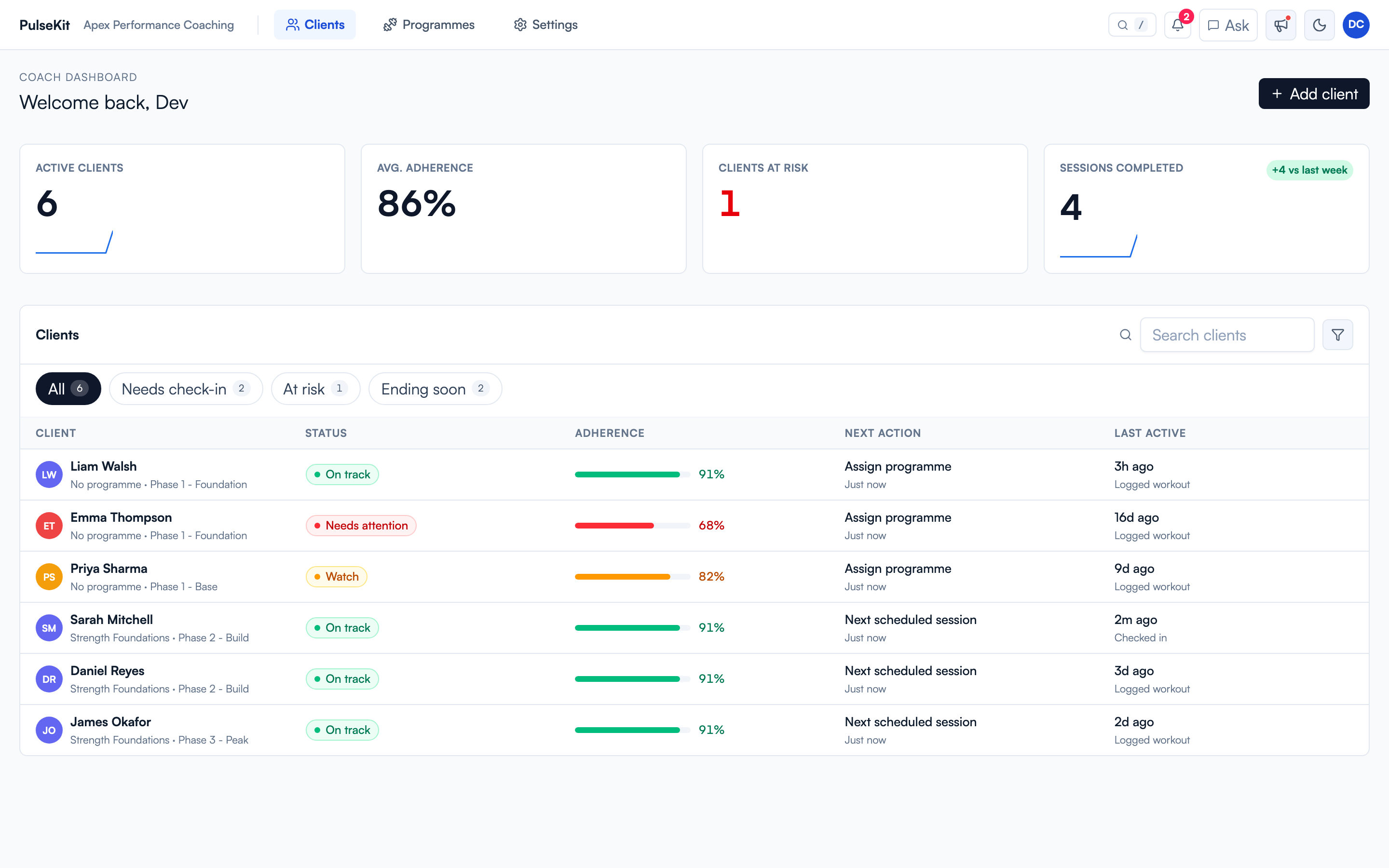
You land on the coach dashboard. From there you can open clients, programmes, settings, notifications, and activity updates.
First-time coaches choose their coaching focus alongside their business name during setup. Choose all that apply and review Visible features. You can change the focus and tools later in Settings > Coaching. Habits, notes and check-ins do not need a training programme.
Existing coaches can select Review onboarding setup from Settings to reopen the five-step setup with current choices prefilled. Select Save setup to apply changes, or Back to settings to leave them unsaved. Existing clients and the Pulse connection are kept. Take a tour opens the separate guided tour.
Then complete Settings > Client onboarding. It covers your onboarding form link, your client onboarding workflow, your default programme, and an optional community link. If you coach groups, set up Programme buckets too. See Group coaching.
If PulseKit does not load
- Make sure you are still logged in to Pulse, then reopen PulseKit.
- Refresh the page and give it a few seconds to sign you in.
- If it still does not open, ask your team lead to confirm your Pulse account has PulseKit enabled.