Settings
Open Settings from the top bar. The sections are listed on the left.
Coaching
Open Settings > Coaching to choose your coaching focus: Training & strength, Nutrition, Mindset, wellbeing & habits, or Other coaching. You can choose more than one.
First-time setup suggests the relevant tools. Open Visible features to change Show training tools and Show food tracking. Habits, check-ins, notes and progress remain available. Existing accounts keep their current tools until the coach changes them. Changing your focus later does not silently change these switches; select Use suggested features if you want those defaults.
Hiding a feature does not delete data. Assigned plans and logged food remain available. The navigation says Plans when training tools are off, so you can still schedule practices. Clients can use their app without a programme.
Coaching philosophy
Describe your approach and examples in Settings > Coaching > Coaching philosophy, with up to 5,000 words. You can also reach it from AI preferences in the programme area.
Select Save philosophy. PulseKit saves your text first, then reviews its clarity and coverage. The feedback gives separate scores out of 10 for Detail and Principles, with strengths, gaps and suggested improvements. It considers your coaching focus. The scores are guidance; length alone does not earn a high score. PulseKit does not rewrite your text.
If the review is unavailable or your AI allowance is used, the philosophy stays saved. Use Try review again later. Editing the text marks the previous review as out of date. Saving the same text can reuse its existing review.
Branding & labels
Brand identity controls how PulseKit appears to your clients, such as your business name and colour. Your community link is also here.
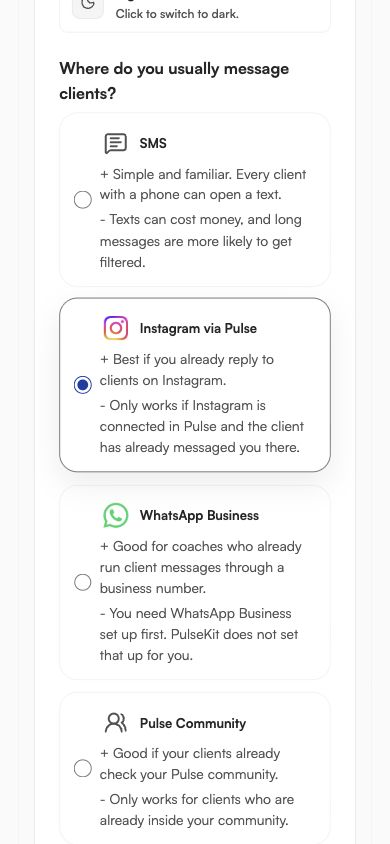
Choose your usual messaging channel here. This adjusts the client-link message guidance; your chosen channel sends the message.
Community link
Add the link your members open to reach your community. It is optional. You can also add it during first-time onboarding, on the Send links step.
- Paste a full web link that your members can open. If you paste your Pulse admin page by mistake, PulseKit asks for the member link instead.
- If you have not built a community yet, select Haven't built your community yet? Click here. It opens Memberships > Communities in your Pulse account.
- When a link is saved, every client sees a Check in with community button on the Check-in tab. It is separate from the private check-in form.
- Once a week, clients with notifications on get a "Time for your community check-in" push that opens your community. No link means no weekly push.
- Clients get a changed link the next time their app loads. Clear the field and save to remove the button.
Reviewed community posts
You can also let clients publish a short summary under their own community name. This is optional and starts switched off.
- In Pulse > Marketing > Social Planner > Settings, connect your community. Each connected channel can appear in the PulseKit picker.
- In PulseKit Brand identity, select Refresh channels, choose the check-in channel and turn on Let clients share check-ins to this channel.
- Select Save community sharing. The community URL above is still needed for the button that opens the community.
After a client submits a private check-in, PulseKit asks Do you want to share this with your community? They can skip, or choose individual answers and the workout summary. Every choice starts unchecked. They then review the channel, their name and the exact post text, edit it if needed, and confirm before publishing. Photos and video links stay private. The private check-in is already saved, whether or not they share.
The client must already be an active member of that channel, linked to the same Pulse contact. PulseKit does not guess an identity from a name or email. Clients added manually need their Pulse contact linked before sharing is available. Each check-in can be shared once, within seven days of submission. Your own client preview cannot publish.
If no channels appear, connect the community in Social Planner, then refresh. Newly added community channels may need to be synced there first. If PulseKit reports a permission error, reconnect the app with Social Planner permissions. A missing connection does not affect private check-ins or the community link.
A post is confirmed only after Pulse reports it as published. If the result is uncertain, the client sees a message to check with their coach. PulseKit does not repeat the post automatically. Published posts are managed in the community; PulseKit has no edit or delete action for them. Private community messages are not supported.
Client onboarding
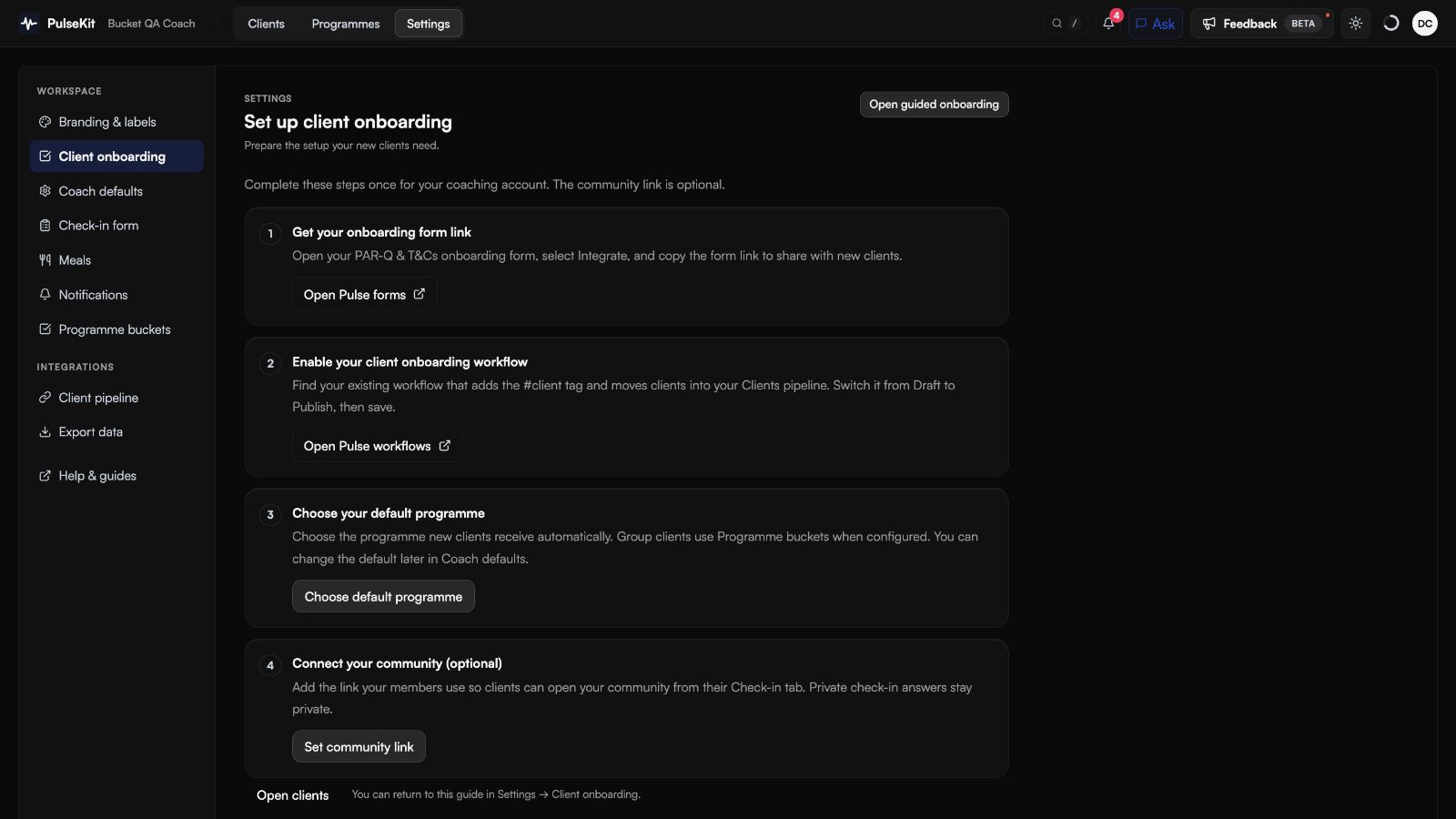
Complete these steps once: get your onboarding form link, enable your client onboarding workflow, and choose your default programme. New 1:1 clients receive the default programme automatically. Group clients use Programme buckets when configured. You can change the default later in Coach defaults. An optional last step, Set community link, takes you to your community link. See Group coaching.
Check-in form
Set your default form here for clients, including group clients. A client with a customised form keeps their own questions. Use Clients > Customise to edit one client's form or reset them to this default.
- Changes apply to the next check-in. Past check-ins keep their questions.
- The standard questions are mood, weight, notes, progress photos, and video link. You can hide, require, reorder, or remove them.
- Add up to 15 custom questions. Answer types are Text, Number, Yes / no, and Scale 1–10.
- At least one question must be shown to clients.
- Reset to default restores the standard form. The preview shows what clients see and is read-only.
- The submit button uses your personal first name, for example Send to Yusef.
Custom Number and Scale answers have progress graphs in each client's full view and their client app History tab. Text and Yes / no answers remain in the check-in history. See Clients.
Notifications
Turn on browser push for your own account. See Notifications.
Programme buckets
Match group clients to programmes using answers from your Pulse form or questions in the client app. See Group coaching.
Client pipeline and Export data
- Client pipeline chooses which Pulse pipeline supplies your client list.
- Export data downloads all your data as a ZIP of CSV files.