Programmes
Programmes organise the exercises, practices and recurring habits your clients follow.
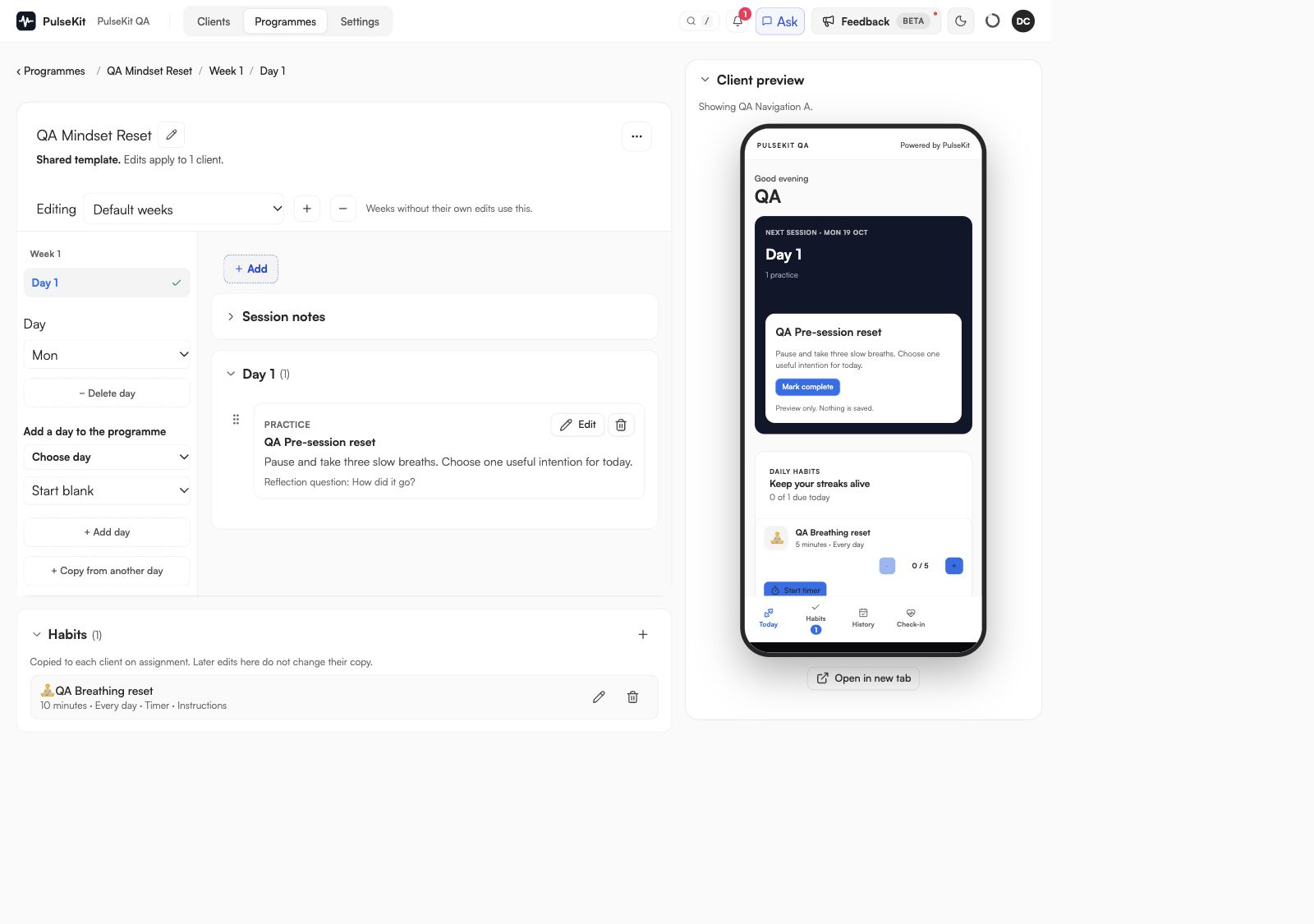
The programme list shows assigned clients, length and adherence. Open a programme to edit its content and see its assigned clients. Use New programme to start with a training structure or a blank plan. The suggested starter follows your coaching focus, and you can change it for each programme. A blank plan has one empty day and no training goal or exercise rows. Use Add to choose an Exercise, Practice or Habit. You can build a plan that contains only habits or practices.
When to use programmes
Use programmes when you want to:
- Create a repeatable training, mindset or wellbeing plan.
- Adjust a client's current plan.
- Reuse a plan for another client or group.
- Keep sessions clear and easy for clients to follow.
Edit one client’s programme
Open the programme from the client’s row or full client view. PulseKit makes a separate copy for that client before you edit it. Their calendar and workout history stay in place. The reusable template and other clients’ programmes keep their existing content. The editor shows whose copy you are editing.
From a shared template, use Edit for this client only under Assigned clients. You can also select the programme line under the client's name.
To change a shared template, open it from Programmes. Changes to scheduled content there apply to clients still using that template. Programme habit defaults are copied on assignment, as described below.
Weeks, blocks and supersets
- Use the − button beside the week picker, choose the week, and confirm. Later weeks move up by one. You must keep at least one week. PulseKit stops you from deleting a week that an active or paused client has already reached. Completed workouts are kept.
- Open ⋯ > Edit blocks to change block names and lengths. The blocks must cover every week without gaps or overlaps. Exercise content stays in its existing weeks.
- Use Add > Superset to add a new superset, or use the link button beside an exercise’s row label to join it to the exercise above. Use unlink to separate it again. Clients see labels such as "Superset A" and the note "Alternate the exercises in this superset." Row labels are renumbered after structural changes.
- Use the video link button on an exercise row to add a video link. Clients can watch it from the exercise.
The week picker selects default weeks, a phase range or one week. Default weeks supply content for weeks without their own edits; they do not replace edited weeks. The + button adds a week, and its tooltip identifies the copied week. Show RPE is in the programme’s ⋯ menu and affects that programme only. Hiding it keeps recorded values.
Practice activities
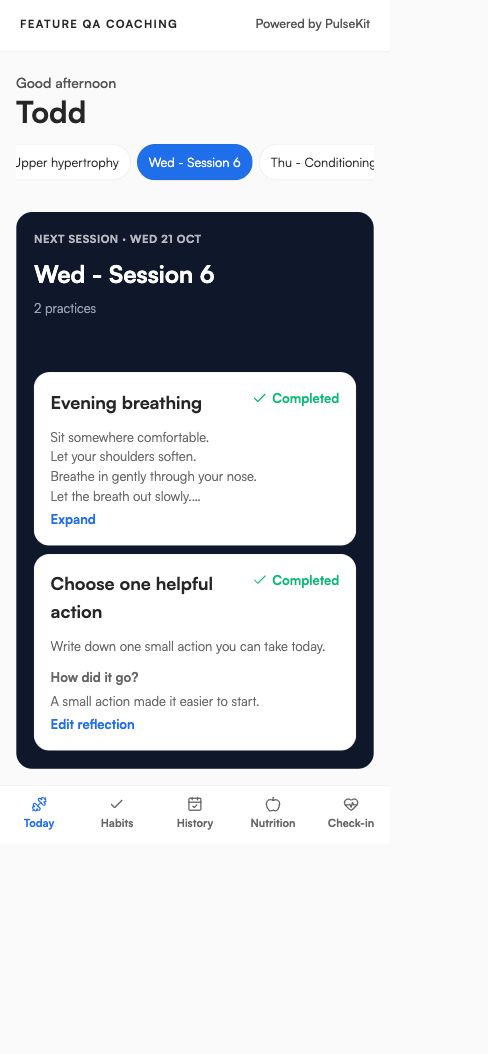
In a programme day, select Add > Practice. Enter a title and instructions. Short instructions appear in full on the client's Today screen; long instructions have an Expand button.
Open Reflection options to edit the optional question shown after Mark complete. New practices start with "How did it go?" Leave the question blank to disable reflection. Completed practices keep the original instructions, question and answer in the client's activity history, even if you later edit the programme.
Use a practice for a task scheduled in the programme. Use an ordinary habit for a repeated target, such as daily breathing practice.
Use Add > Conditioning for intervals, circuits or other workout instructions without adding exercise rows.
Programme habits
Select Add > Habit, or open the programme’s Habits section. Set the target, frequency, reminder and optional timer instructions as you would for a client habit. A programme default has no client start date.
Assigning the programme copies its active habit defaults to that client, starting on the assignment date. You can then edit the client’s copy in their full client view. Later template edits affect future assignments and do not overwrite client habits or logs. Repeating an assignment does not create duplicate copies or reactivate an archived habit. Removing or changing the programme keeps those client habits and their history.
Keep the editor compact
Use the pencil beside a programme name to rename it. Open ⋯ for secondary actions. Section headings collapse notes, conditioning, day content, habits, assigned clients and the preview. Your choices are remembered for this coach and account. Collapsing keeps unsaved edits; save errors reveal the affected section.
Programme buckets
Turn on Available for programme buckets on a programme so your bucket rules can assign it to group clients. See Group coaching.
Programme checklist
Before assigning a programme, check:
- The goal matches the client.
- Scheduled activities are in the right order.
- Activity names and instructions are clear.
- Targets, frequency and any exercise prescriptions are correct.
- Any substitutions or restrictions are included.
Keeping plans tidy
Use clear names so programmes are easy to find later. If a plan is no longer current, archive it rather than leaving it mixed in with active work.